Peugeot Tutorial | Connected Services | How to link your vehicle to your phone
Heat. Heat. Heat. Heat. Heat up here. Heat. Heat. Heat. Heat. Heat. Heat. Heat. Heat. Heat. Heat.
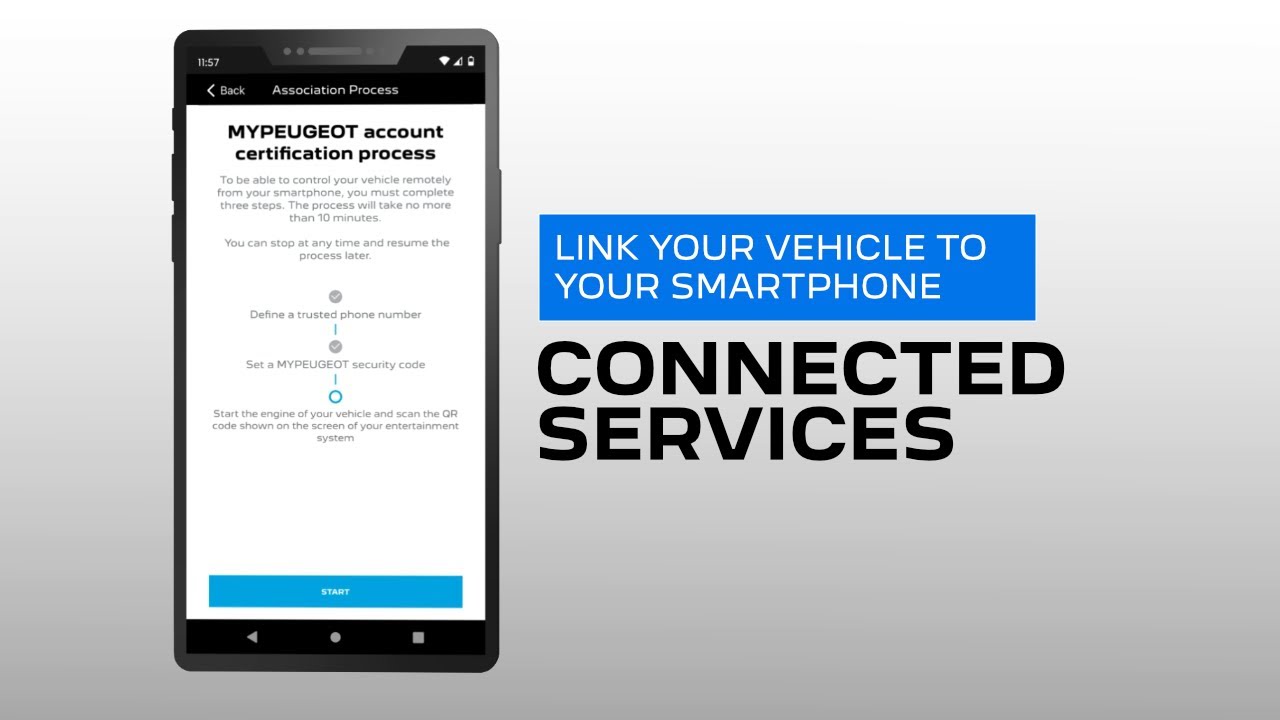
Now that you have activated your #Peugeot #ConnectedServices https://youtu.be/eHPL2xLSzPI, you will need to do a 3-step association process with your phone. This ensures you easy access to various remote features of the Connect PLUS Pack like managing your vehicle from your phone and on-board Connected Navigation.
The first step will be adding a trusted telephone number. Then you will need to create a 4-digit security code. Get on board your Peugeot and turn the engine on to do the third step, either by scanning a QR on your head unit or via Bluetooth depending on your vehicle. Once you receive an in-app confirmation you will be set to enjoy your remote features.
Download the #MyPeugeot app and start now.
For Android: https://play.google.com/store/apps/details?id=com.psa.mym.mypeugeot&hl=en&gl=USFor iOS: https://apps.apple.com/gb/app/mypeugeot-app/id1021587274
DISCLAIMER:
All images displayed are for illustrative purposes only. For more information on terms and conditions, available features and services, duration and costs please go to: https://services-store.peugeot.com/
#PeugeotTutorial #ConnectedCars #PeugeotServices #SmartCar #CarTech
Chapters: 0:06 Launch vehicle association within 30 days
0:14 Enter your vehicle, turn on the engine and access the MyPeugeot App
0:20 Follow the instructions from the in-app banner
0:25 Accept terms and conditions
0:30 Add your phone number and confirm
0:46 Create a 4-digit security code
1:09 In your vehicle
1:17 QR code pairing
1:47 Bluetooth pairing
Get social with Peugeot UK:
http://www.facebook.com/PeugeotUK
Tweets by PeugeotUK
http://www.instagram.com/PeugeotUK
https://www.linkedin.com/showcase/peugeot-uk/