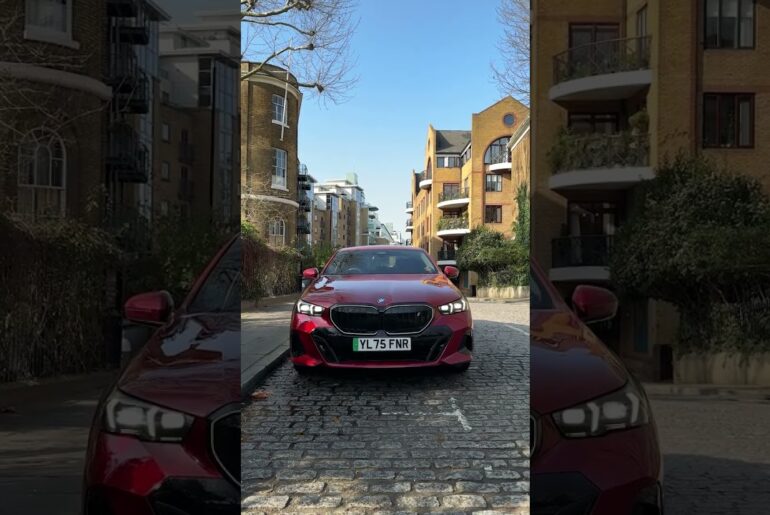
How To Add Multiple BMW IDs In BMW OS 7 | BMW How-To
Linking up to three BMW IDs to one vehicle is now also available for BMWs with Operating System 7.
This means everyone can benefit from features like Remote Services for your BMW.
Here’s how:
Open the My BMW App and log in with your BMW ID. Click on “Add Vehicle”, and type in the Vehicle Identification Number (VIN) of your BMW, which can be found in the passenger side door frame.
After entering the 17 digits of your VIN, a security code will be sent to your BMW, which is valid for approximately 3 hours.
Go to BMW Messages. Enter the Security code provided in your My BMW App, and then, accept the terms and conditions.
That’s it! Your BMW is now linked to your My BMW App.
Side Note: Scroll down and go to “Vehicle configuration” and open the “User Management”.
The first user to link the car is automatically the Primary User.
More users? No problem! Simply allow up to two additional users to add your BMW to their BMW ID.
A second or third BMW ID can be added to the same vehicle, with the same steps. After typing in the VIN any additional user is asked to be added as a Secondary User or the new Primary User.
Be aware that if you chose “Replace Primary User”, the previous Primary User, as well as all other Secondary Users, will automatically be deleted! This should only be selected if you are the new owner of the vehicle for example.
Choose “Secondary User”.
Open the message in your BMW, and enter the code provided in your My BMW App, as shown before, and accept the Terms and Conditions.
Done!
You are now added as a Secondary User and both of you can enjoy the benefits of the My BMW App.
Continue watching our How-To series to explore all the innovative features of your BMW!
Looking for a quick answer? Check out our FAQ page : https://faq.bmwusa.com/
Refer to your owner’s manual or visit: https://www.bmwusa.com/owners-manuals.html
Need further help? Contact us here: https://www.bmwusa.com/contact-us.html