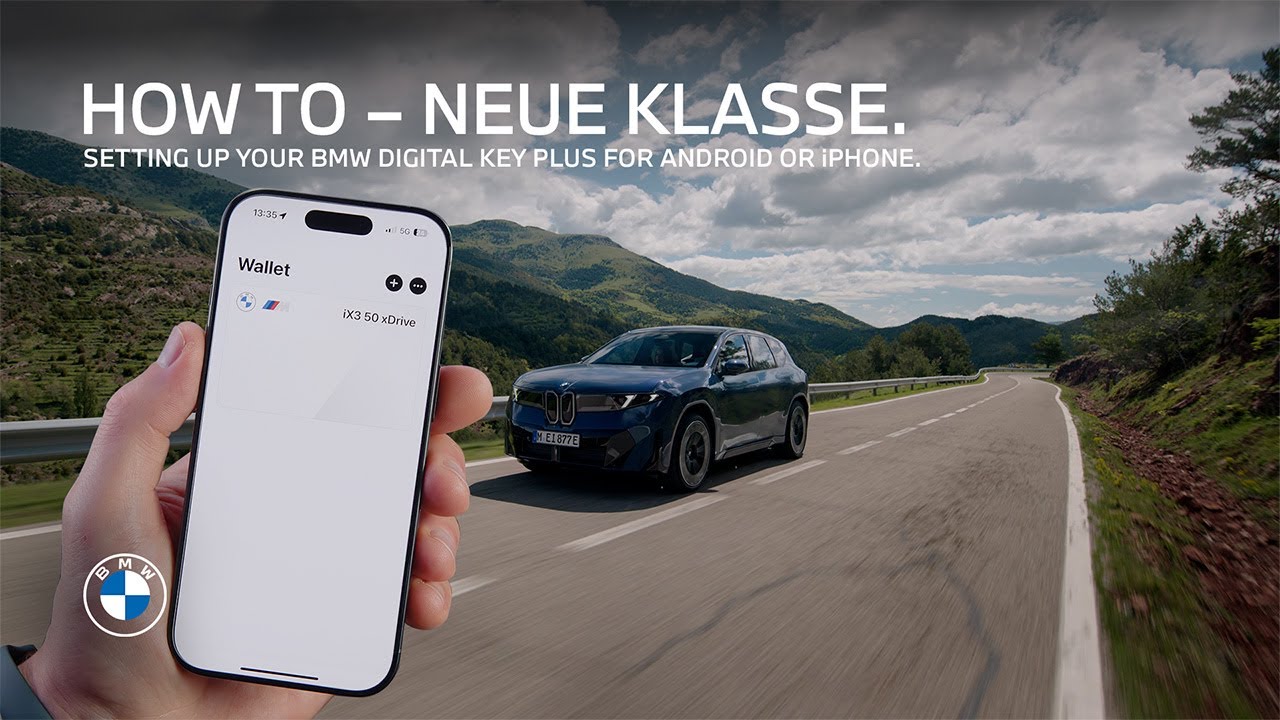
How-To: Setting up Your BMW Digital Key Plus.
You know the BMW Digital Key Plus. And you know how cool it is to be able to handle basically all your daily routines with your smartphone. Now here’s how effortless it is to complete all steps of the connection set up for your BMW in one simple process. Set up your BMW Digital Key Plus, connect your vehicle to your BMW ID and My BMW App and link your key to your BMW ID. The BMW Digital Key Setup Card that comes with your new BMW model makes it possible. You need your smartphone with the My BMW App and your BMW ID logged in. The process works basically the same whether you’re using an Apple iPhone or compatible Android smartphone. Let’s go! Hold the setup card to the back of your phone and make sure you hit the area of the NFC antenna. With iPhones it’s located at the top, whereas with Android smartphones and of course, depending on the manufacturer, it’s located at the center. Take the card. Move it along the back of your phone slowly. And upon recognition of the card, a message appears. You tap it and you get directly to the welcome screen of the My BMW App. Another way to get started is to scan the QR code on the back of the card. Now the app prompts you to authorize as the vehicle owner by scanning the card again. Continue and already your vehicle is linked to your BMW ID and to my BMW app automatically. Once that is done, you can directly set up your BMW Digital Key. You have 60 minutes to get into the car with the physical key and the smartphone to finish the digital key setup. On we go in the My BMW App. Press “finalize setup”, finish pairing the Digital Key Plus. Check. There it is in the respective wallet app of the smartphone. You can also directly add it to a connected Apple Watch or compatible Android smartwatch. And finally – and here comes the cherry on top – Your BMW ID with your personal settings is activated in the vehicle and linked to your freshly setup BMW Digital Key Plus. No further manual steps needed. With Android devices, it is necessary to confirm once more, but now everything is setup. For security reasons, please keep the setup card safe and don’t store it in the car. You’re now also ready to interact with your BMW using the My BMW App in all kinds of ways, especially using the extended Digital Key remote controls when you’re near it. Watch the other How-To video about that, and of course, even leaving your device in your pocket, you can just get in. See, as you’ve opened the vehicle with the Digital Key, your BMW ID with your personal settings is activated. You’re good to go. Look for more how to videos to get the most out of your BMW.
Here’s how to activate the BMW Digital Key Plus for your car and conveniently connect your vehicle with your BMW ID and your My BMW App along the way. The BMW Digital Key Setup Card makes your iPhone or your Android device ultimated your primary vehicle key.
⚙️ Feature Availability:
Please note that each service, feature and its functions depends on availability. Depending on the vehicle model and its technical capacities as well as market regulations, the availability and details of a feature may differ.
📽️ Key Moments:
00:00 – Intro
00:27- Start connection with the BMW Setup Card
01:47 – Finalize setup in the car
02:32 – Hints for usage
🔗 Learn More
The BMW Driver’s Guide app specifically describes the equipment and functions included in the vehicle. The Owner’s Handbook is available as an app in many countries. You will find further information on the Internet at: https://www.bmw.com/bmw_drivers_guide
📱 Join the Conversation
If you found this guide helpful, please give it a thumbs up, share, and subscribe for more BMW tutorials. Drop your feedback or questions in the comments below.
#BMW #BMWHowTo #BMWNeueKlasse #BMWPanoramiciDrive #BMWiX3
BMW iX3 50 xDrive: Mandatory information according to german law ’Pkw-EnVKV’ based on WLTP: energy consumption combined: 17,9 – 15,1 kWh/100 km; WLTP CO₂ emissions combined: 0 g/km; CO2-class: A; electric range: 679-805km