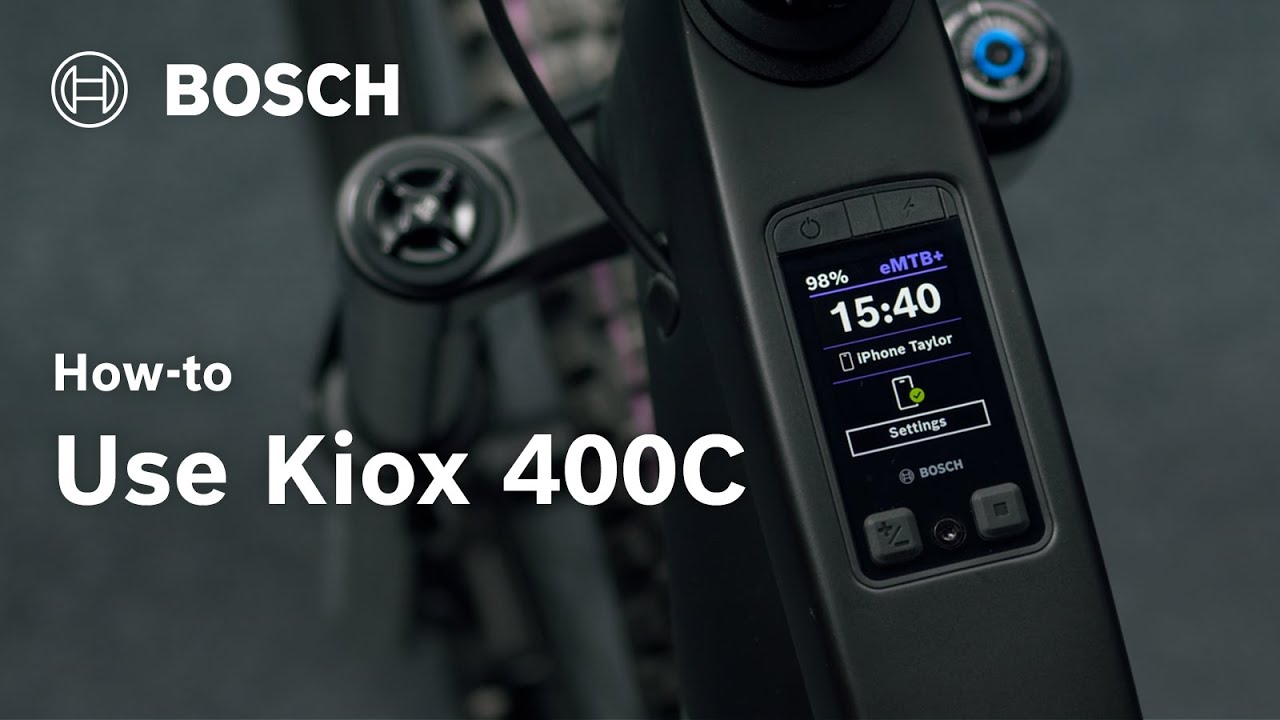
How-to | How to use Kiox 400C | Bosch eBike Systems
Hey, [Music] in this video you’ll learn how to use the functions of Kio 400C shown here with a mini remote. To turn your ebike on or off, press the onoff button on the Kio 400C. [Music] Tap connect now on the home screen of the eBike Flow app and follow the instructions to connect your Kio 400C equipped eBike. You’ll only be able to use all the features of the eBike Flow app with your Kio 400C once you’ve registered your eBike. [Music] Use the mode button on the Kio 400C to change riding modes. To select a lower support level, press and hold the mode button for at least 1 second. To select a higher support level, briefly press the mode button on the Kio 400C. [Music] To switch between screens, briefly press the selection button on the Kio 400C. [Music] Press and hold the selection button on the Kio 400C in the status screen for more than 2 seconds to access the settings. Use the mode button to move between menu entries. To scroll down, press and hold the mode button for at least 1 second. To scroll up, briefly press the mode button. You can customize the status bar of the Kio 400C in the settings menu. Press the selection button on the Kio 400C again for more than a second to go back. To open the quick menu, press and hold the selection button on the Kio 400C on any screen except the status screen for more than a second. Here you can reset your ride data. For example, press the selection button on the Kio 400C again for more than a second to return. The Kio 400C features a built-in USBC charging port protected by a ceiling cap. This lets you easily charge your smartphone or ebike light while riding or even during a break as long as your ebike is switched on. Whether and how you can charge external devices with the Kio 400C depends on your drive unit, the manufacturer and model of your ebike and the connected devices. The charging process for external devices is shown by a green check mark on the charging symbol in the status screen. Navigation for Kio 400C shows you the way. Precise turnbyturn directions reliably guide you to your destination. Junctions are always clear and easy to recognize. With the dynamic screen layout of Kio 400C, you automatically get the information that matches your current riding situation. This means you no longer need to switch screens manually. [Music] You can use your Kio 400C together with the mini remote, for instance, and control functions on the handlebars using the mini remote. Use the plus or minus button on the mini remote to change the riding mode. To switch between screens, briefly press the selection button on the mini remote. [Music] Press and hold the selection button on the Kio 400C for more than two seconds to open the settings. Use the plus minus button to move between entries. You can also adjust the status bar of the Kio 400C in the settings menu using the mini remote. [Music] Press and hold the selection button on the mini remote for more than a second to go back. Hold the selection button on the mini remote on any screen except the status screen for more than a second to open the quick menu. Here you can reset your ride data, for example. To switch between quick menus, briefly press the selection button on the mini remote. Hold the minus button on the mini remote to activate walk assistance. Walk assistance helps you push your ebike more easily. [Music] [Music] With hill start assist, you can start off more easily on a hill. Place your foot on the pedal so your ebike knows you’re ready to start. Then press and hold the minus button until you’ve set off. [Music]
In this video, you will learn how to use your eBike with the Kiox 400C.
0:00 Intro
0:15 Turning On/Off the Kiox 400C-Equipped eBike
0:25 Connecting the Kiox 400C-Equipped eBike to the eBike Flow app
0:57 Switching Riding Modes
1:19 Switching Screens
1:39 Accessing Settings
2:18 Opening the Quick Menu
2:36 Charging a Smartphone with the Kiox 400C’s Integrated USB-C
3:17 Navigation with Kiox 400C
3:30 Dynamic Screen on Kiox 400C
3:50 Controlling Kiox 400C with the Mini Remote
5:08 Activating Walk Assist and Hill Start
Experience the world of Bosch eBike Systems.
Visit our website: https://www.bosch-ebike.com
Visit us on Facebook: https://www.facebook.com/boschebikesystems
Visit us on Instagram: https://www.instagram.com/boschebikesystems/
Subscribe to our YouTube Channel: https://www.youtube.com/subscription_center?add_user=boschebikesystems