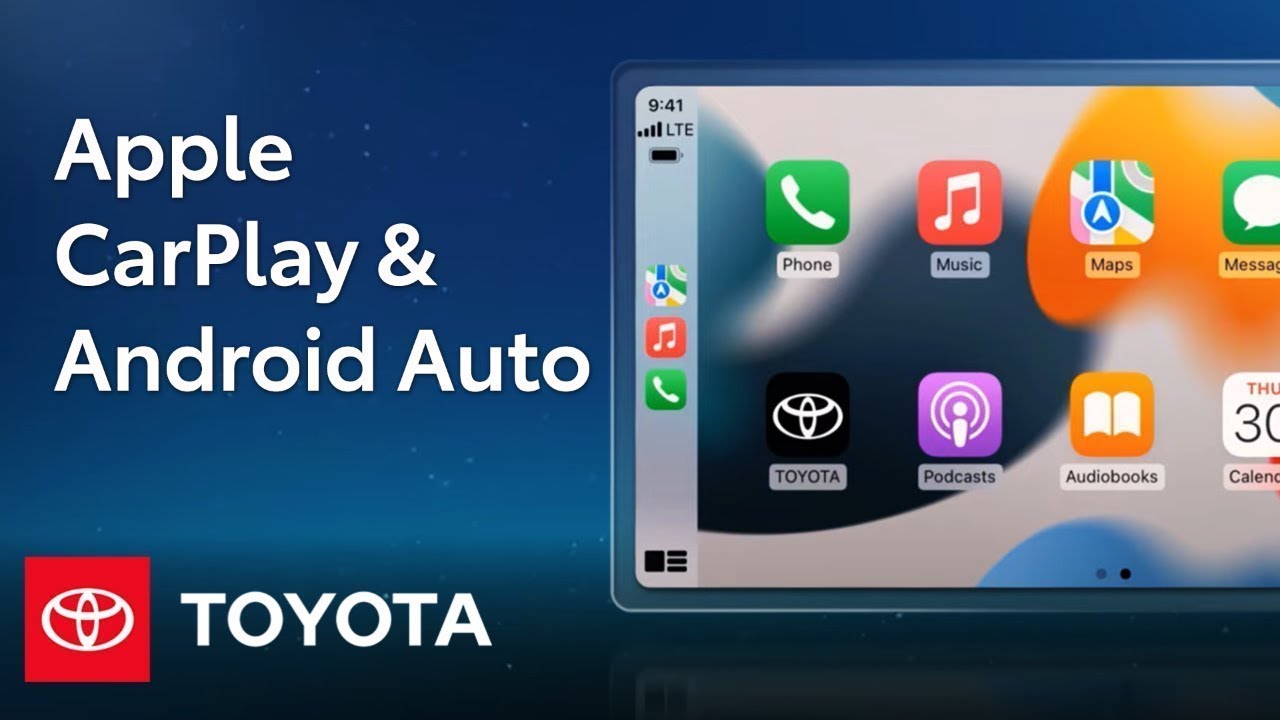
How To: Apple CarPlay and Android Auto on Toyota’s New Audio Multimedia System | Toyota
– [Narrator] Toyota’s latest-generation Audio Multimedia platform includes a huge list
of great entertainment, convenience, and connectivity features. Key among these is Apple CarPlay, which connects drivers to Apple Music, Maps, Messages, and other favorite apps from the iPhone. Additionally, Android Auto makes it easy to stay connected to Android devices. This new platform
supports wireless CarPlay. During the Bluetooth pairing process, simply select Yes on the prompt to activate the service. If No is selected, the device will function as a standard hands-free device, and the service will need to be activated through the Settings section. To do this, select Bluetooth & Devices, then choose the device from the list. Now simply toggle on
Use for Apple CarPlay. Like before, drivers can also choose to connect through
a wired USB cable. Simply plug in and accept the prompts that appear on both vehicle display and mobile device. And when doing so, the iPhone will also ask if drivers would prefer to activate wireless
CarPlay for next time. Connecting to Android Auto follows nearly the same process, including both wired and
wireless connectivity, but of course, the settings toggle will be labeled Use for
Android Auto instead. Whether wired or wireless, these services will now
automatically launch when the device is connected. Once active, it’s easy to switch between the default multimedia
experience and CarPlay. Just select the icon in the upper left of any screen to jump to CarPlay. This shortcut can also be found in the phone and music sections when these services are active. To return, just select the Toyota icon from the service’s home screen. While using CarPlay, system audio and
notifications will still work, and the same applies the other way around, as well. This makes it easy to enjoy features like Navigation Handoff, which prompts drivers to return to CarPlay if either of them has active navigation guidance underway. As expected, switching back and forth with Android Auto works the same way, including the notification feature. And that’s a quick look at the seamless integration between Toyota’s latest Audio Multimedia platform and mobile devices. CarPlay make it easier than ever for iPhone users to stay connected. Android Auto keeps Android functionality just a tap away. To learn more, visit toyota.com/audio-multimedia.
With Toyota’s new Audio Multimedia Platform, connecting mobile devices to your car is easier than ever. Learn how to set up and use Apple CarPlay and Android Auto on Toyota cars. Watch more Toyota Multimedia videos: https://www.youtube.com/watch?v=kiPysxvkmoU&list=PLsOvRYzJPCwWa2XJu8b0ZXLoNwBF4RZiv&index=1
Learn more about the new Toyota Audio Multimedia System: https://www.toyota.com/audio-multimedia
0:00 Toyota’s New Audio Multimedia Platform
0:25 How do you connect an iPhone with Apple CarPlay?
1:14 How do you connect a phone with Android Auto?
1:32 How does Toyota CarPlay work?
Subscribe for more Toyota videos: http://bit.ly/ToyotaSubscribe
Connect with Toyota USA online:
Visit the Toyota WEBSITE: http://bit.ly/ToyotaSite
Like Toyota on FACEBOOK: http://bit.ly/ToyotaUSAFB
Follow Toyota on TWITTER: http://bit.ly/ToyotaTwitter
Follow Toyota on INSTAGRAM: http://bit.ly/ToyotaInsta
This Toyota tutorial shows how to connect devices to your Toyota car through Apple CarPlay and Android Auto.
#Toyota #ToyotaAudioMultimedia #AppleCarPlay #AndroidAuto