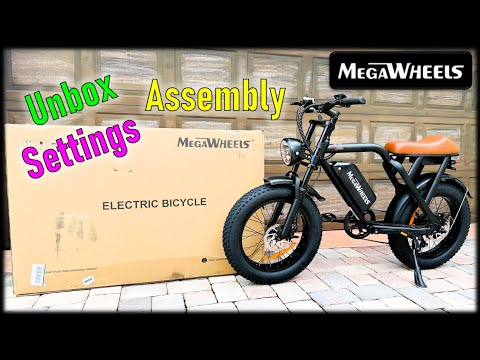
Megawheels Fat Tire eBike – Unbox – Assembly – Settings
In this video, we’re going to unbox and assemble this all-new fat tire eBike from Mega Wheels. Now, link to this bike is above and also in the description. But before we get started on unboxing, I hope you like this video, subscribe to my channel, and let’s get after it. [Music] The bike is packaged pretty well. And inside this smaller box is the charger. The manuals in here for assembling the bike. This is the headlight pedals. And it looks like some of the tools are in there. [Music] So, take note that the keys for the bike and the battery are located here on the handlebars. What you want to do is cut those off and remove the battery and get that charging as soon as possible. You’re going to see that there’s two separate keys. I would leave one of these keys at home just in case you lose one while you’re riding, but you want to double check which one’s for the battery. Unlock the battery with the key. Slide up, remove the battery, and I’m going to get this charging. So, I have the bike all unpackaged from the shipping box. And it comes with all the tools that you’re going to need to assemble the bike. This is a really neat multi-tool, and I carry this with me when I go riding, just in case I have any loose fasteners, I can tighten them up. It’s nice and compact. Now, the only thing you’re going to need with this is a pump to pump up the tires. Everything else comes with the bike. So, let’s get started on the assembly. We’re going to start here at the stem cap and install the handlebars. And what we want to do is find the 4 mm hex and then loosen the bolts here on the side. For the top, you’re going to need the 5 mm hex. I’m going to loosen that up just a little bit. And what you want to do is bring this stem around. Don’t loosen it too much. maybe a turn and get that aligned to the front. And then what we want to do is now tighten the top of the cap down. Want to make sure that this is tight or else you’ll get a little bit of jiggling in the handlebars because there’s too much play in the stem. So I tighten that down. Now I’m going to go back and tighten the two side bolts down. Got that tightened down. Now, what I want to do is remove the front stem cap. Now, what you want to do is bring up the handlebars, and you’re going to see these lines here. And you want to center these lines and that circle with the stem cap. So, I’m going to put it on like that. You can always come back and adjust it if you don’t like the angle of the handlebars. Go ahead and put these screws back on. I got the handlebars loose enough and I’m going to go ahead and get this centered and rotate the handlebars around. Now, with it centered, I’m going to go ahead and tighten this down evenly, making sure the gap on the top and the bottom is evenly spaced. In this segment, we’re going to install the front wheel. You’re going to locate the axle and take note of the nuts and washers on the axle. So, you have a nut on the outside that I’m going to remove. You’re going to see that there is a lock washer with serrations. Then you’re going to have this washer with a tab on it. Then you’re going to have another washer that has some steps in it. And then you’re going to have this rubber piece. Before you install the wheel, what you want to do is take your axle, this rubber washer, and then this spacer with the different steps on it, and take the smallest diameter and engage it on the rubber washer like this. And they almost become two pieces. And I’m going to slide it on one side. I’m going to take that, put it on the center hub of the wheel, slide the axle through, and you’re going to see that that spacer sits on like that. I’m going to do the same thing for the other side. I’m going to go ahead and put that spacer on the rubber washer. Slide that on. Make sure that it stays on like that. Now, I want to lift up the bike, making sure the rotor is on the side with the brake caliper. Get that aligned. And you want to make sure that the dropouts on the fork engage. This is where it might help having a friend, but get this lined up with the fork. Get that on there like that. Now you can see that it’s engaged. I have both of those washers inside of the forks. And now what I want to do is take the washer with a little tab on it. This prevents the wheel from falling out. And you want to make sure that that goes on and connects the tab into the little hole above the axle. You can see that it’s secured in there. Now I’m going to take my flat washer, lock washer, put it on, and then I’m going to put the nut on one side. I’m going to do the same for the other side. put that lock tab washer on, then the flat washer, then the nut. And now what I want to do is just make sure that this is centered so the axle protrudes evenly on both sides. Go ahead and lock that down finger tight. And then this is where you’re going to use that larger 15 mm wrench. And you’re going to go ahead and tighten this down. You’re going to do this on both sides. Make sure that that’s secure so the front wheel doesn’t come off. To install the front fender, you’re going to need this long screw, the nut to secure the back of it. And you’re going to simply just slide it above the tire like that. Bring it up. Put your screw through like that. Put the nut on the back. Usually like tighten this down fingertight. Then I’m going to use my tool here and tighten this down with the 5 mm hex. There we have it. If you want it straightened out, you can also bend it a little bit to get it the reveal that you want. In this segment, we’re going to install the headlight. Make sure that this piece is up towards the top. You can tell because the horn area here is a little bit covered and sheltered from the rain and the cables on the bottom. What I’m going to do is loosen the bolts on each side. I’m going to take these brackets and rotate them around so they face forward. You’re going to see these little rubber stoppers. They’re here so that these brackets don’t crash into the frame. So, they want to point towards the frame. And I’m going to go ahead and loosen the bolt. You’re going to see that there’s a rubber washer. And I want to make sure that the rubber washer is between the bracket and the headlight so that it dampens any vibrations while you’re riding or else the the light will be jiggling around. I’m going to go ahead and do that for the other side. And you can use a Phillips head screwdriver to tighten that down. But don’t over torque this or else you’ll crack the plastic housing on the headlight. So just a little bit past fingertight. Then you can remove the plastic. Headlight looks really great. And then what you want to do is make sure that you connect the headlight and horn. So take the cable now and from the main harness you’re going to see these two yellow. And you want to line up the tab that’s at the top with the top of the harness and push them together. And then you can tuck the excess down below. And that’s what it looks like. In this segment, we’re going to install the pedals. You can see on the inside of the pedals, there’s a L for left and an R for right. Just match them up with the crank arm. And it actually tells you which way to turn them. And you’re going to use the 15 mm wrench to snug them up. So, this one I’m going to be turning in this direction. And now for the right pedal. To tighten that, you’re going to go in the counterclockwise direction. We’re going to install the battery now that it’s fully charged. I can test the battery when I turn this on. And then I can test it here. And you can see that it’s fully charged all the way up. I’m going to go ahead and install that in the frame. You’re going to push down and secure it to the mount. And then you’re going to take the key. And notice the key has a number on it. the number coincides with the key on the shank and then you can secure it to the frame. And now the battery is locked in the frame. I suggest keeping one of these keys in a safe space and then the other one take it with you just in case the battery pops out or you need to remove it from the frame. Now let’s remove the protectant cover on the screen. There we have the screen. And there’s a little protect in piece behind it. And then I can rotate this around. And this is where you may want to adjust the handlebars as I sit on here. That’s a pretty comfortable riding position. I may want to tilt these brakes down a little bit cuz it’s a little reach up for them. Take these plastic covers off. Everything looks good. It’s a nice comfortable riding position. So, I want to just double check my fasteners before I take this for a ride and get this started. To turn the bike on, you’re going to need this other key that’s shaped like a chevron. And you’re going to insert it into the throttle like this. And you can turn the bike on in that direction. And then you got to make sure that the battery is on. And then you’ll hit the M button to turn the bike on. And you can see that the headlight was on. This is the headlight button. That’s the horn. This is your sevenspeed shifter for the back. This is your half twist throttle. This is the front brake. This is the rear brake. And you do have headlight and tail light. Here are the various features of the display. If you hit the plus button, you’ll increase the pedal assist modes. You can see this is the max at five. The battery is fully charged. If I turn this on, you’re going to see that it goes to the max speed. Now, this speed is restricted to 20 miles an hour or uh 32 kilometers because it’s a class 2 ebike. I’m going to unlock it, and I’ll show you how to do that in a little bit. But, let’s first go through the different settings on the uh display. You can see if I hit the M button, I can cycle through to the different options. So, you have the odometer. That’s how many miles are kilometers on the bike. This is the trip that I’ve taken. This is the voltage of the battery, which is a nice feature. This is the current that only displays obviously when the motor is um operating. This is the time that has elapsed for your trip. And then back to the odometer. If you want to decrease the pedal assist modes, you can hit the minus button, plus to increase it. And then to turn the bike off, just simply hold the M button and the display will turn off. To turn back on the display, hold the M button. Make sure that the key is in the open position. And what I’m going to do now is go through the advanced settings menu. Now, to access the advanced settings menu, what you’ll want to do is hold the plus and minus button for about two seconds and it’ll drop you into the advanced settings menu. This is P01. And then this is the optional setting below. To change that, just simply hit the minus button. It will cycle through the different options within that settings. Now, P01 is the screen brightness. So, I can cycle through. Three is the brightest, one is the dimst, two is medium. I’m going to leave it as the default. Moving on to P 02. This is your speed in miles per hour or kilometers or your units. To change that, if you go to 00, that’s kilometers and 01 is miles per hour. Moving on to P 04. That is the voltage level. This is a 48volt bike. So I’m going to leave that as the default. P 04. This is the screen dormcy. How long before the screen will shut off when there’s no uh action on the bike. This is set to 10 minutes. I’m going to leave that as the default. Moving on to P 05. This is the help bit file or the gear ratio. I’m going to leave that as the default. That’s five. P6. This is the outside diameter of the tire in inches. That’s 22 in. Leave that as the default. P 07 is the speed gauge magnet number. I’m going to leave that as the default. 01. P8. This is the speed limit. Set to 100 is unlimited speed. I’m going to leave that as the default. P 09. This is the zero start. I’m going to leave that as the default. That’s zero. If you change it to one, you need to pedal up to 6 km/h before the motor will engage. So P10 is the drive mode. 02 is throttle and pedal assist only. 01 is throttle disabled and 0 is pedal only. So if you need to disable the throttle, that’s the setting that you want to do. And then moving on to P 011. P 011 is the help sensitivity. I’m going to leave that as the default. P12 is the help start intensity. I’m going to leave that as the default. P13, this is the power magnets. I’m going to leave that as the default. P14, this is the amps, the max amps that the controller sends out. 12 amps is pretty low. I’m going to probably go back and change that so I get better torque and acceleration. P15 is the under voltage. This is the voltage of which the battery will cut out at 41 volts. And then P16, this is to reset the odometer. And what you want to do is press and hold for five seconds. And then if you hit the M button, it goes back to P01. The one thing I definitely want to change is changing the amps because 12 amps is pretty laxidasical. So what I want to do is change P14 to in my case, I want to go the highest I can go, which is I doubt it will go that high. I’m going to go I think I’m comfortable setting this at 22 amps as the max. So, I’m to save those settings. You’re going to hold the plus and minus button for two seconds and that will bring you back to the main screen. to unlock this bike from a class 2 ebike that’s restricted to 20 miles per hour or 32 km to go to a class 3 which is 28 mph or 45 km. What I want to do is a sequence like this. want to do is turn this throttle key off. And I want to hold the brake. And I want to turn on the key. Then turn on the display. And I want to turn the throttle three times. Then shut the throttle off. and turn it back on. And now go to pedal assist mode five. Now that I have that on, let’s see how fast it goes. I can definitely hear it going faster. Now it’s unlimited. It gets up to 34 mph. Now, I doubt it will do 34 mph when I’m riding the bike, but at least it’s unlocked. And now it can go up to class 3 speeds. If you have any questions, please leave in the comments. I hope you like this video. Subscribe to my channel and thanks for watching.
Unboxing and assembling the MegaWheels EB01 eBike made simple! 🚴 In this step-by-step video, I’ll walk you through the full MegaWheels unbox and assembly process, plus show you how to navigate the Advanced Settings menu. You’ll also learn how to unlock the speed from Class 2 to Class 3 eBike mode for faster riding.
👉 Link to buy MegaWheels eBike on Amazon: https://amzn.to/3K2qyR6
Link to Megawheels eBike on eBay: https://ebay.us/S42i1K
If you find this video helpful, please like, subscribe, and hit the notification bell for more eBike tips, tutorials, and reviews. Thanks for watching!
Please Like and Subscribe https://www.youtube.com/c/BRichSolution https://www.instagram.com/b_rich_solution https://www.tiktok.com/@brich2021
https://brichsolution.com/
www.megawheels.com
@Megawheels @EbikeReviews @EbikeSchool
#ebike #amazonfinds #megawheel
Chapters:
00:17 – Unbox
01:37 – Assembly
12:13 – Turn On
12:52 – Display & Settings
17:31 – Unlock Speed Restriction
Advanced Settings:
P01: Screen brightness: 1 darkest and 3 brightest
P02: km or miles: 0: KM/H, 1: MPH
P03: Voltage level: 36V, 48V, 60V, 64V default 48V
P04: Screen Dormancy time (how long unit screen auto shuts off) 10 is default
P05: Help file bit: 0, 3 file mode: 1,5 gear mode:
P06: Outside Wheel diameter. default is 22 or 23 inches
If speed is not accurate adjust wheel size
P07: Speed gauge magnetic steel number: range: 1-100;
This parameter is related to the meter display speed and needs to be entered
correctly; If it is an ordinary hub motor, direct input of magnetic steel;
If it is a high-speed motor, it is also necessary to calculate the deceleration ratio, and the input data = the number of magnetic steel × deceleration ratio;
For example: number of motor magnets 20, deceleration ratio 4.3: input data is: 86 = 20 × 4.3
P08: Speed limit: range 0-100km / H, 100 means no speed limit.
P09: zero start, non-zero start setting, 0: zero start; 1: Non-zero start;
P10 = Drive Mode:
0 = Pedal only (Throttle Disabled)
1 = Throttle Only (no Pedal assist)
2 = Pedal Assist and Throttle Active
P11: Help sensitivity setting range: 1-24;
P12: Help start intensity setting range: 0-5;
P13: Power Magnetic Steel Disk Type Setting 5, 8, 12 Magnetic Steel Types
P14: Controller Amperage output. Default = 12A. Set to 20-22 for max power.
P15: Controller under voltage
P16: Reset
FTC: Some of the products linked above use income earning auto affiliate links, which means that if you click one of the links and purchase a products, I could receive a very small commission (at no additional cost to you).