Tata Harrier EV Self & Remote Parking Demo | Hands Free Park Assist Explained!
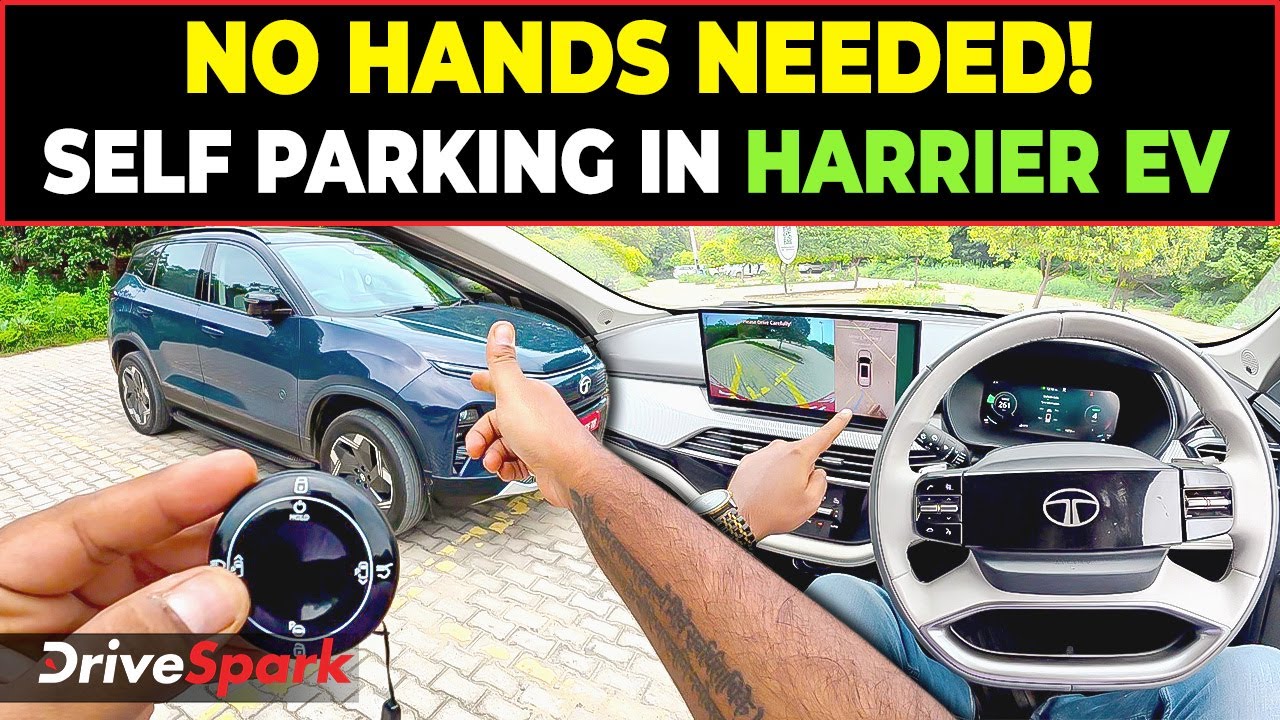
and the car starts moving and obviously there is no one in the car. This feature is very helpful because it’ll take the car out and as you can see there is no one in the car right now. Okay. I don’t know why the boot continues to open and close. Oh, this is a very very cool feature. So, you can park the car uh here. You can park the car literally anywhere. Hi guys and welcome to Drive Spark. I’m Promeit and what we are driving today is the Tata Harrier. Now in this video we are going to demonstrate the auto park/self parking and the remote parking features of this car. It’s very interesting. So stay tuned to the video and watch it till the end. Okay. So this is the key fob of the Harrier.e. And over here you have a few buttons. Uh let me just explain it. This is log. This is unlock. That’s for your remote parking where you want to park your car. This is to operate the light. This is to open the boot. And what you have on these two sides is to move the car front and back. So first of all, I’ll be demonstrating that. So what you have to do is hold this power button. And when you hold it, you can see the indicators are going on. Uh car goes on. Now the car is on. And then if you want to move it forward, you just press this button. So just keep it holding. And you can see that the parking brake comes off and the car starts moving and obviously there is no one in the car. So you keep it pressed till where you want to take it out. And just in case if there is something on either side of the car, obviously this feature is very helpful because it’ll take the car out. And as you can see there is no one in the car right now. So you can take it till wherever you want. And if it detects an obstacle right in front of you or at the back, it will obviously stop on its own. Same for the back feature. Just press this button. Let us quickly start moving the back. And as you can see, it is moving back. And just for your reference, I’ll just go behind and stand. So you can see that the car button is still pressed, but obviously the car will come to a stop. It’s still pressed and I have to press it with two hands because the button is really hard. If I move from back. Okay. I don’t know why the boot continues to open and close. I think because the button is actually very closed. All right. So, you can move it back and uh forward like that. But let’s go on the inside now and I will show you another very cool feature now. Okay. So, now we are inside the car. It’s on park right now. And uh yeah, you see there is the automatic parking button. So, what you can do is uh just put it to D. And after you put it to D, you press this button. So it says searching for a parking lot. Please drive below 10 km. If you’re driving and it searches, it will automatically detect. But you can see these grids over here. You just select this and it says to mark an open parking. So basically you can select your own parking area. Now this is a very very cool feature. So you can park the car uh here. You can park the car literally anywhere. And also if you want to park it at an angle, there is a 15° angle you can see over here. And if it turns red then obviously it is saying that it cannot be parked over here. So what we’ll do is we will take it and park it right over here. So that is kind of the spot where it has to park. We’ll just press this. There are two things. Auto parking sit back auto parking and uh release your hand and remote parking. So second we’ll try the remote parking first. I will just try this. So there you go. Now it’s saying to release the brake and as you can see both hands and feet are off. So you can see that it is going forward. This will complete the green bar will complete. So as soon as the green bar completes and there is no steering input whatsoever. So it’s moving forward but it’s saying to keep an eye around. So there you go. No, my legs are actually back. So that’s kind of cool. Now it the green bar has completed. Now it’ll move back. So, and if it detects something at the back, it will stop automatically. Now, that’s a really, really cool feature. There you go. It’s taking the turn. And as you can see over here, it will park over here where we actually selected it. So, there you go. Hazard light comes on automatically and it has successfully parked itself. So once it’s parked obviously it will straighten out the steering wheel and parking brakes have been applied and it has parked. Now one more very cool feature that is there. Let me just show that to you as well. So we’ll go to the same spot back again because there is some room to play around. So what we can do is you’ll just park over here. There you go. We’ll just park over here and we’ll put it to drive. Again the same thing. Now we will okay till it turns blue. Now we will park it at this place. Let’s park it over here. Little down. Yeah. Okay. There you go. So if Okay. Again. But why I did that? I will tell that to you. So okay. So, we’ll hit park and what we’ll do is we’ll do the remote parking as well. So, it says keep your car running, shift to P, roll up the windows, grab your remote key, and get out of the car. So, now we can remove the seat belt. We’ll need this key over here of the vehicle. And that is the slot that we have chosen. And over here, this is the P button. So, we’ll just keep it pressed. And now the car will start moving. And you can see that there is no one inside. I just got out of the car. And now it’ll park itself on this spot automatically. So initially you have to press the P button and then it will start. So now you can see it’s rolling on its own and you have to keep this button pressed. I’m pressing it with two hands because it’s a very tight button. And if you leave the button obviously it will stop where you left it and it will move back. And there you go. The steering has already rotated. And as I told you, we have selected that slot. So from there it is moving all the way up to this slot. And that’s again a really cool feature. It’ll remember the way out and if it finds any obstacle. So it’s very hard to keep the button pressed. Honestly, they should have made a better button. This is not at all comfortable. You have to literally press it with two hands. I was just finger starts paining. And there you go. So finally and look at the at look at what accuracy it will park. Just look at that. And I think the parking has complete. So that was the auto park feature where you get get out of the car and the car parks itself on its own. I hope you like this video. If you liked it, please give it a thumbs up, share and subscribe to all our social media channels. I’m Provin signing out. See you next time. Thank you so much for watching. Take care, be safe and drive safe.
In this video, we explore the Self Parking and Remote Parking features of the Tata Harrier EV, showcasing how this smart SUV parks itself with ease. From Auto Park Assist to key controlled remote parking, we break down how Tata’s latest EV is pushing boundaries in intelligent driving tech.
Whether you’re considering buying the Harrier EV or just curious about how its smart features work, this detailed democovers everything you need to know!
👉 Don’t forget to Like, Comment & Subscribe for the latest automotive updates!
——————————————————-
#TataHarrierEV #SelfParkingCar #RemoteParkingFeature #TataEV #CarTech #DriveSpark #AutoParkAssist #ElectricSUV #IndianEV #HarrierEV2025 #ADASFeatures #HarrierEVParking #CarTechnology
——————————————————-
Video Highlights:
0:00 Tata Harrier EV In this video
0:32 Tata Harrier EV Intro
0:48 Tata Harrier EV Remote Key Explained
1:29 Tata Harrier EV Demonstrate
2:40 Tata Harrier EV Automatic Parking demonstrate
5:12 Tata Harrier EV Remote Parking
7:20 Tata Harrier EV Outro
——————————————————-
👉Related Videos
• https://youtu.be/4Ge6XBLejTI
• https://youtu.be/lcpjBhypHQw
——————————————————-
👉Like, Share and Subscribe to Drivespark Channel for latest updates.
——————————————————-
🌍Visit our website:- https://www.drivespark.com
——————————————————-
📲 Stay Updated With Drivespark Via Social Media :-
✔Facebook – https://www.facebook.com/drivespark/
✔Twitter – https://x.com/Drivespark
✔Instagram – https://www.instagram.com/drivespark/
✔Snapchat – https://rb.gy/8a3cnv
——————————————————-
~PR.304~ED.70~##~