Setting Up BMW ID and Driver Profiles | BMW How-To
A feature that makes your driving experience truly unique is your BMW ID. And adding your BMW ID to your vehicle is simple. Tap the BMW ID menu and select add BMW ID. With your smartphone, scan the QR code on the display. After your profile has loaded, toggle the vehicle key to link the key to your profile. Select finish to complete the setup and add your BMW ID to the car. You will need to use the My BMW app to complete setup on your mobile device. Open the My BMW app. Follow the prompts as directed and accept the connected drive terms of use to finalize the process. You’re all set. Your vehicle is now added to the My BMW app. All user data and profile settings you’ve saved in the BMW cloud will be downloaded. Your personal settings are automatically activated when you open the car with a linked key. In the BMW ID profile settings, you can see which keys are linked to your profile, manage profiles, and even adjust lock screen options via the settings. If you have not already linked a key to your profile, tap the BMW ID menu, select profile settings and then select the plus sign to link a key to your profile. You also have the option to link your smartphone as a digital key to your BMW ID. Additionally, you can add or remove a PIN to prevent unwanted access to your screen. Select the lock screen menu. Click the plus tile to set a PIN and follow the prompts. It is important to note when a PIN has been added to a BMW ID, it must be entered every time to activate the screen, similar to how a smartphone operates. If you wish to remove your PIN, select the trash can tile on the screen and follow the prompts. I’m sure you know a lot about your BMW, but there’s so much more. So, hit the subscribe button, comment, like, share, and tap the notification bell to discover the full potential of your BMW. What are you waiting for? [Music]
A feature that makes your driving experience truly unique is your BMW ID… and adding your BMW ID to your vehicle is simple.
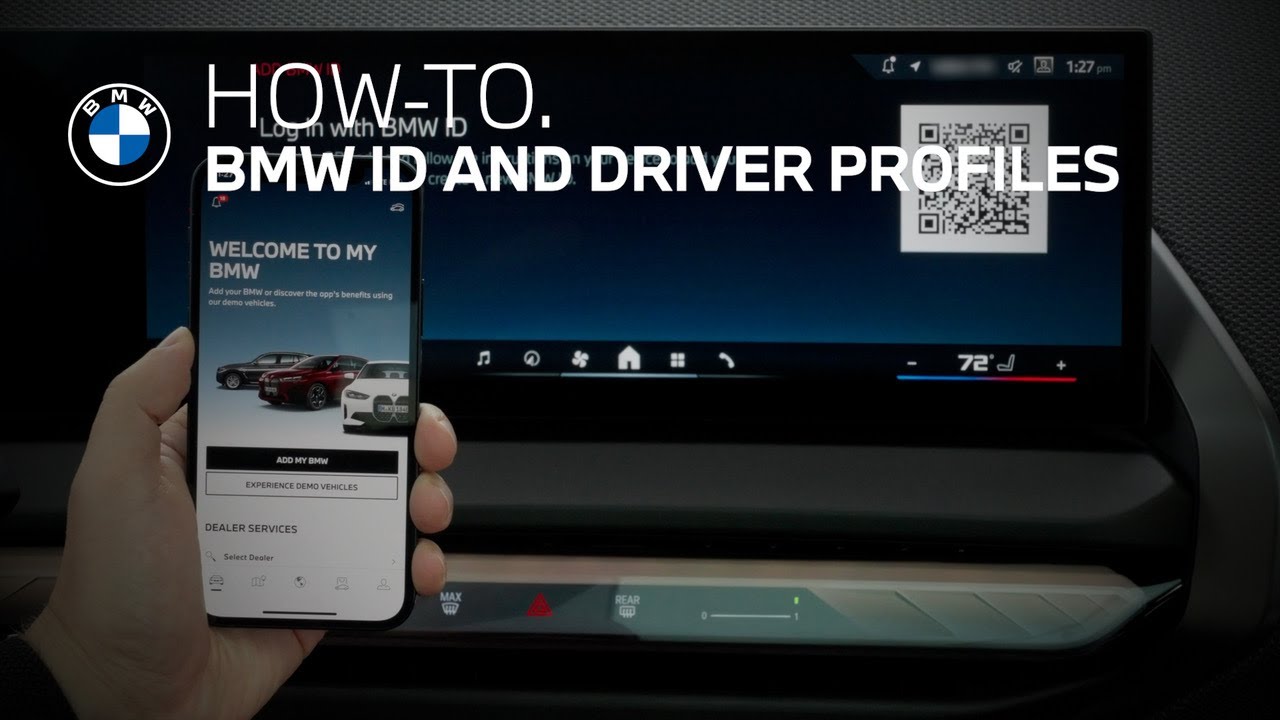
Tap the BMW ID menu and select Add BMW ID.
With your smartphone, scan the QR code on the display. After your profile has loaded, toggle the Vehicle Key to link the key to your profile. Select “finish” to complete the setup and add your BMW ID to the car.
You will need to use the My BMW App to complete setup on your mobile device. Open the MyBMW app, follow the prompts as directed, and accept the ConnectedDrive Terms of Use to finalize the process.
You are all set! Your vehicle is now added to the MyBMW app.
All user data and profile settings you’ve saved in the BMW Cloud will be downloaded. Your personal settings are automatically activated when you open the car with a linked key.
In the BMW ID profile settings, you can see which keys are linked to your profile, manage profiles, and even adjust Lock Screen options via the settings. If you have not already linked a key to your profile, tap the BMW ID menu, select “profile settings,” and then select the plus sign to link a key to your profile.
You also have the option to link your smartphone as a Digital Key to your BMW ID. Additionally, you can add or remove a PIN to prevent unwanted access to your screen. Select the Lock Screen menu, click the plus tile to set a PIN, and follow the prompts. It is important to note, when a PIN has been added to a BMW ID, it must be entered every time to activate the screen, similar to how a smartphone operates.
If you wish to remove your PIN, select the trash can tile on the screen and follow the prompts.
Continue watching our How-To series to explore all the innovative features of your BMW!
Looking for a quick answer? Check out our FAQ page : https://faq.bmwusa.com/
Refer to your owner’s manual or visit: https://www.bmwusa.com/owners-manuals.html
Need further help? Contact us here: https://www.bmwusa.com/contact-us.html
Follow BMW USA for the latest in luxury cars and performance vehicles:
Facebook: https://www.facebook.com/BMWUSA
Instagram: https://www.instagram.com/BMWusa
Twitter: https://twitter.com/BMWusa
TikTok: https://www.tiktok.com/@BMWusa