Electric Motorcycle Controls Are Not What You Expect
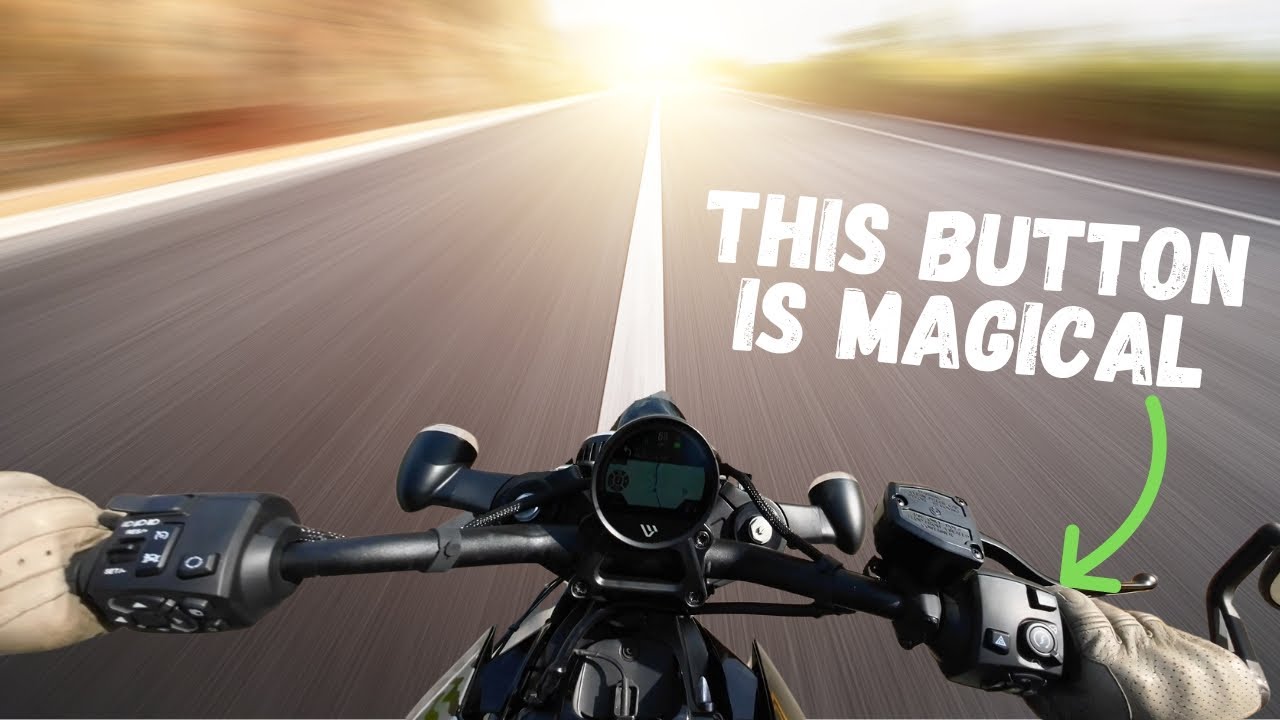
You know that feeling when you first get a new bike and you just have no idea what anything on the sandleb bar means? Let’s fix that. Today I’m breaking down every switch button and menu on the Live R S2 to show you exactly what everything does. I’ll cover the basics and then I’ll show you two secret modes that almost every Live R S2 owner completely misses in the first few months of ownership. First, let’s get down to business and get familiarized with the controls, switches, and menus on the S2 platform. Starting with the lefth hand control module, the cruise control is right here. Then you hit the set button to set the cruise at the current speed. You can then hit the set or the minus to lower the speed or the resume plus button to resume or increase the speed. Headlight controls are up top. Push it down for flash to pass. Then toggle it up for high beams and then toggle it back down for low beams. The headlight comes on and off on its own when you turn the bike on. So that’s not something that you have to do manually. The trip button switches the odometer screens. Holding it down resets the current trip counter. You can also use the up and down arrows to cycle through the odometer, the ambient temperature, and the trip settings. The menu button cycles through the infotainment system. And once you bring up the first menu card, you can then use the left and right arrows to move back and forth between each menu card. Use the arrows up, down, left, and right to move within the menus and the sub menus, and hit the center button to select. The home button takes you straight back to the main speedometer screen. Another feature of the home button is switching between the home screen and the previous menu screen. So, if you want to look at your odometer while you’re navigating, just tap the home button to go back to the home menu, then tap it again to resume the navigation screen. This is probably one of my most used features in the entire infotainment system on the bike. Turn signals are standard left and right with a manual and an automatic cancelling feature. The bike automatically cancels turn signals once you’re out of the turn or after a few seconds if no turn is detected. Manually cancel. Either push the direction indicator again or push the whole button in. And the horn button is right below the turn indicators. Moving on to the right hand control module. Tap the hazard triangle for four ways. They’ll keep flashing for two hours, even if the bike is off. Mode cycles your active ride modes on the fly. There’s some great hidden features with this button, but we’ll get to those in just a second. The off run arms the bike and start enables propulsion. Just below that are the media controls, previous, next, play, pause, and volume, as well as voice assist. You hear the audio, and you have a microphone, so you can handle calls and use a voice activation when you have it paired with your smartphone. Traction control. This controls the amount of slippage at the back wheel before the bike reduces output to stop the wheel from spinning. The ABS feature can be disengaged, but only in the custom riding profiles. To do this, switch to any of the custom riding modes and hold down the mode button until the icon turns purple. And then to reenable ABS, just tap the mode button again, and it returns back to the normal profile. There are five main cards on the instrument module. home card, the navigation card, audio, bike status card, settings card. Your home screen card shows your speed, your state of charge, your range, the clock, ride mode, and other indicators. You have a charge bar at the top, and then you also have the remaining percentage and the estimated miles. In the corners, the trip view shows the odometer plus your trip A and trip B. The settings card is where you tweak the basic cluster settings and customize the riding behavior. You’ll adjust things like the display, the clock, the charge target percentage, units of measurement, screen brightness, and go into ride customization here. Note that you can’t access these settings when in propulsion mode, so be sure to make any changes before you start riding. With a phone paired and a route started in the Live R app, the navigation card gets you turnbyturn directions, next action icons, distance to maneuver, and time info. Sometimes the navigation will refuse to populate on the TFT. If this happens and you really need navigation on the TFT, close out of the app, turn off the bike, restart the app, turn the bike on, and then reselect your route. It’s far from perfect, but when it works, it works brilliantly. The audio card shows your song titles, artists, and albums, and the progress bar for the current song you’re listening to. You can control the playback and the volume from the right cluster once you’ve paired your phone. The bike status card is where you get a quick snapshot of your bike’s overall health. In this card, you can see your tire pressure, your TTU signal strength, the 12volt battery voltage, and access the bike’s diagnostic trouble codes in case your bike is acting up. Use the mode button to flip through the sport, road, range, rain, or your custom riding profiles. Custom lets you tailor power delivery and region feel plus related assists inside the settings. Again, only when propulsion is not enabled. You can copy the preset riding modes into the custom ride modes and adjust the power, acceleration, and regenerative power. Using the left and right keys, you can increase or decrease settings in single intervals. Holding it down will increase in larger amounts. You can enable or disable all riding profiles except for the road profile. And without further ado, here are the two secret features that most Live R2 owners overlook. With the fob nearby, press and hold the trip button to enter accessory mode. This wakes the dash up. It powers the USBC port and the position lamp comes on and you can even flash the headlights all without enabling propulsion. Press and hold the trip button again to turn it off. This is handy feature in case you need additional power to charge your phone while you wait or if you want to keep your external devices like your GPS, Apple CarPlay or heater gear on while you aren’t riding. The final and most secret of settings on the S2 bikes is the secret ride mode. These modes differ subtly in power output depending on the model, but essentially they are equivalent to insane mode on Teslas. The modes are track mode for the Delmare and chicane mode for the Mahalland and the Alpineista. To enable secret ride mode on all the S2 platforms, what you’re going to do is put the bike in sport mode and then you’re going to hold the mode button down and then it will switch over to whatever the secret mode is for whatever platform it is that you’re riding. I have a lot of fun with the secret settings. The Delmare probably has the craziest out of all of them. the most squirrely secret mode. The secret mode, the chicane mode on the Moleholland is a really, really good secret mode compared between the Delmare and the Chicane. I didn’t feel like I was going to kill myself in chicane mode. In track mode, I really don’t trust myself in track mode. It is It’s truly insane. And that’s all I’ll really say about it. That’s going to be it for this video. I’m Ben Marshall. This is Adventures on Zero. See you in the next video.
If you just picked up a LiveWire S2 or are thinking about buying one, this video will walk you through every control, switch, and menu so you can actually understand what’s on your handlebars and screen.
We’ll cover the left and right hand controls, TFT menus and sub-menus, rider modes, customization settings, the maintenance menu, and we’ll finish with a hidden feature most owners miss: accessory mode.
This is the video I wish I had when I first got the bike.
More rides, tips, and gear: www.adventuresonzero.com