How To: Service Connect on Toyota’s New Audio Multimedia System | Toyota
Toyota’s latest-generation Audio Multimedia platform
includes a huge list of great entertainment, convenience, and connectivity features. This video will provide a
closer look at Service Connect, which provides drivers with personalized maintenance updates, important alerts, and
vehicle health reports. To use Service Connect, drivers must be registered and enrolled in Connected Services, which can be done through
the Toyota mobile app. Let’s get started. On the vehicle’s Audio
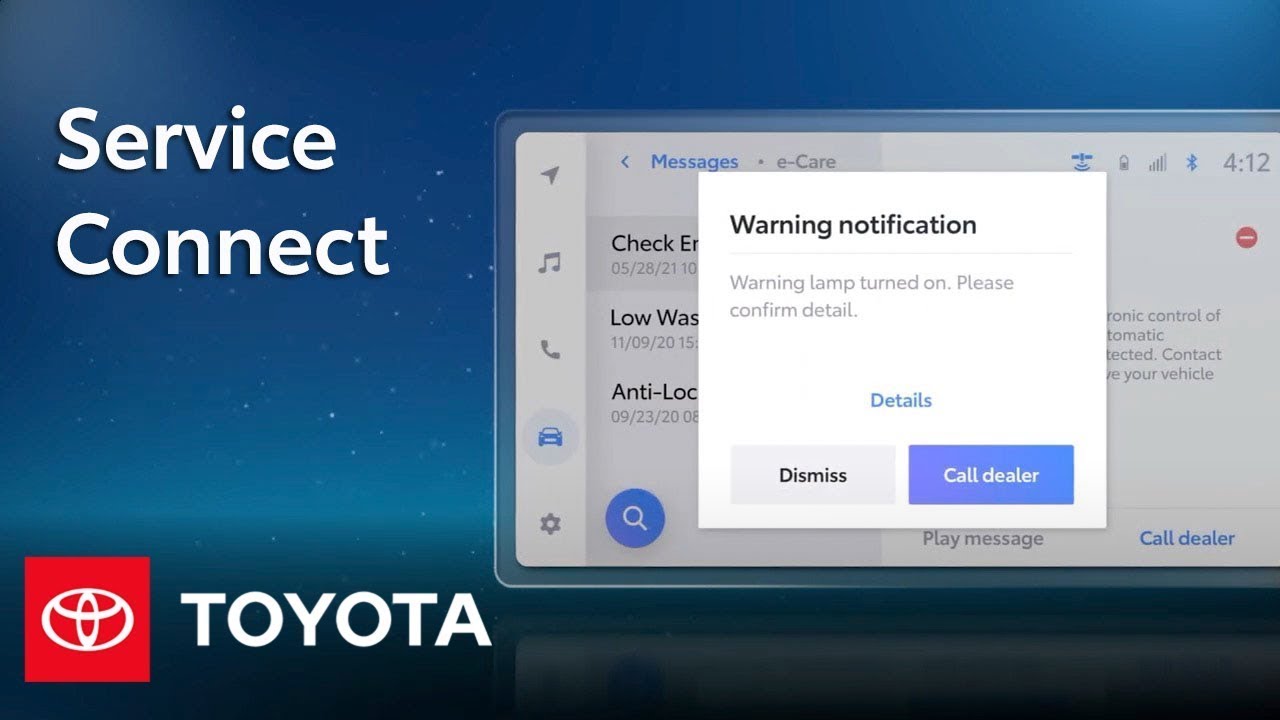
Multimedia touchscreen, Service Connect provides
two types of messages: pop-up notifications and service banners. Pop-up notifications are important alerts that remain on the multimedia touchscreen until one of three actions is taken: Select Details to be taken
to the Message Center to read more information
about the notification, Select Call Dealer to get in touch with
your preferred dealer, or select Dismiss to
dismiss the notification to the Message Center, where it can later be reviewed or deleted. When reviewing the notification, select Play message to hear any audio accompanying the message, select the minus symbol
to delete the message, or select Call Dealer to
call the Preferred Dealer that was set up in the app. Meanwhile, service banners display actions that have been taken within
the Audio Multimedia system. For instance, if the dealer is performing a remote diagnostic, a service banner might
appear once complete. These banners appear at the top of the audio multimedia
touchscreen for 6 seconds, or they can simply be swiped away. Need to change your preferred dealer? Not a problem. Choose the Service tab at the bottom. From here, select Make an Appointment, grab your current preferred dealer, then select Change Preferred Dealer. Choose from the list, you can also tap the search bar to search by name, city, or zip code. Finally, select Set as Preferred Dealer to save the changes you’ve made. Through the Toyota app, Service Connect makes it easy to stay on top of vehicle
maintenance schedules, service history, and even
current vehicle health. Within the app’s Service tab, click the Make an Appointment button to schedule service with
a participating dealer, selecting History shows a record of Toyota-authorized services
performed on the vehicle. Under the Vehicle tab, click the Health button to
view your latest report, or see the full list of any active alerts. And that’s a quick look at Service Connect on Toyota’s latest Audio
Multimedia platform. To learn more, visit
toyota.com/connected-services.
Toyota’s new Audio Multimedia Platform introduces Service Connect, which provides drivers with personalized maintenance updates. Learn how it works in this video. Watch more Toyota Multimedia videos: https://www.youtube.com/watch?v=kBjOMAnpNTY&list=PLsOvRYzJPCwWa2XJu8b0ZXLoNwBF4RZiv&index=1
Learn more about Toyota’s Connected Services: https://www.toyota.com/connected-services
Learn more about the new Toyota Audio Multimedia System: https://www.toyota.com/audio-multimedia
0:00 How To: Service Connect on Toyota’s New Audio Multimedia Platform
0:32 What are Service Connect messages?
1:43 How do you use Service Connect with the Toyota app?
Subscribe for more Toyota videos: http://bit.ly/ToyotaSubscribe
Connect with Toyota USA online:
Visit the Toyota WEBSITE: http://bit.ly/ToyotaSite
Like Toyota on FACEBOOK: http://bit.ly/ToyotaUSAFB
Follow Toyota on TWITTER: http://bit.ly/ToyotaTwitter
Follow Toyota on INSTAGRAM: http://bit.ly/ToyotaInsta
This Toyota tutorial shows how to use Service Connect on Toyota’s new Audio Multimedia System.
Feature available for most of the following models: bZ4X, Sequoia, Tundra
Applicable to models of the following years: Applicable to models of the following years: 2022, 2023
#Toyota #ToyotaAudioMultimedia #ServiceConnect