How To: Cloud Navigation on Toyota’s New Audio Multimedia System | Toyota
Toyota’s latest-generation
Audio Multimedia platform includes a huge list
of great entertainment, convenience, and connectivity features. This video will provide a
closer look at Cloud Navigation, a smarter, more integrated way
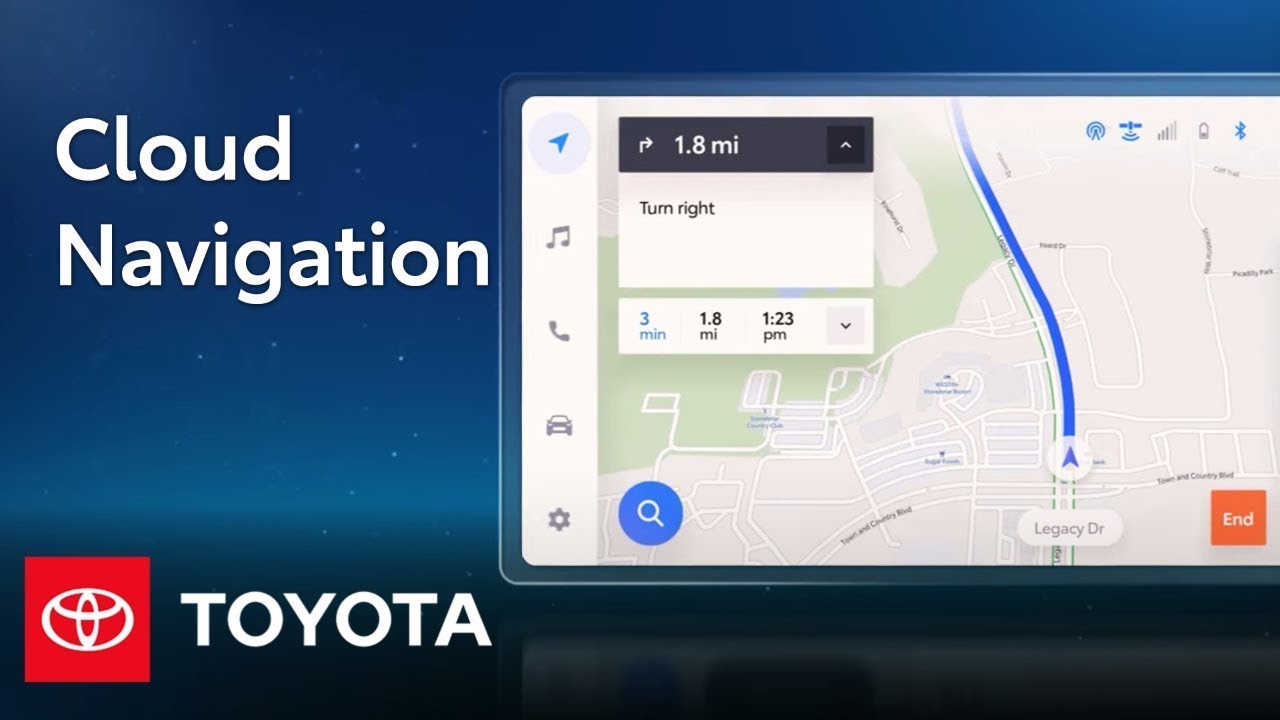
to get where you need to go. Let’s learn how it works. Cloud Navigation, which replaces the previous-generation
Dynamic Navigation system, is one of three features provided by Toyota’s new subscription-based
service, Drive Connect. Destination Assist and
Intelligent Assistant are the other two features to consider. As the name implies, Cloud Navigation uses the vehicle’s Data Communications Module to stay connected and up to date, checking for new infrastructure
data up to twice per month, and allowing for
real-time traffic results, accurate ETA information, enhanced map and POI content over the previous Dynamic
Navigation platform, Intelligent Assistant
integration, and much more. But even if the system is offline, onboard navigation
functionality remains available, although POI information may be limited. However, if the system
detects an upcoming loss of connectivity along the route, it can even download map
information in advance. If a trial or subscription is active, Cloud Navigation can be accessed
at any point by selecting the location icon at the
top of the left-side menu, which will then display a map screen. If no trial or subscription is active, tapping this icon will
instead show a landing screen with an option to learn
more about the service. On the map screen, several icons are available
to customize the view, including switching between 2D and 3D, zooming in and out, re-centering the map to the vehicle, and reorienting the map with north up top. There’s also a menu
icon in the lower right, which will allow drivers to
enable or disable live traffic, as well as call Destination Assist, or visit the full settings page, where map and route details
can be further adjusted. Searching for a destination is simple. Just use your wake-up
phrase, like “Hey Toyota”, or select the search icon on the screen. Now, using natural speaking language, tell the Intelligent Assistant
where you’d like to go, and it will return a list of results. This list can be further refined and organized by tapping the filter icon. However, if the first suggested result is the one you were after, simply confirm it with
the Intelligent Assistant. Otherwise, select the result from the list and select Go now. Either way, the route will now begin, with the screen displaying
turn-by-turn directions and an ETA. You can also ask the Intelligent Assistant for a list of destinations, or select Destinations
from the Listening pop-up. This will show a list of destinations, including saved addresses,
recent searches, and important POI categories. And of course, you can still search for a destination manually
with the on-screen keyboard. To do this, simply tap
the keyboard function on the Listening screen. And that’s all there is to getting started with Cloud Navigation on Toyota’s latest Audio
Multimedia platform. To learn more, visit
toyota.com/audio-multimedia.
Toyota’s new Audio Multimedia Platform introduces Cloud Navigation, a smarter, more integrated way to get where you need to go. Learn how it works in this video. Watch more Toyota Multimedia videos: https://www.youtube.com/watch?v=CaPRCM5NGAQ&list=PLsOvRYzJPCwWa2XJu8b0ZXLoNwBF4RZiv&index=1
Learn more about the new Toyota Audio Multimedia System: https://www.toyota.com/audio-multimedia
0:00 Toyota’s New Audio Multimedia Platform
0:18 What is Toyota Cloud Navigation?
1:16 How do you use Cloud Navigation?
2:06 How do you search for a destination?
Subscribe for more Toyota videos: http://bit.ly/ToyotaSubscribe
Connect with Toyota USA online:
Visit the Toyota WEBSITE: http://bit.ly/ToyotaSite
Like Toyota on FACEBOOK: http://bit.ly/ToyotaUSAFB
Follow Toyota on TWITTER: http://bit.ly/ToyotaTwitter
Follow Toyota on INSTAGRAM: http://bit.ly/ToyotaInsta
This Toyota tutorial shows how to use Cloud Navigation on Toyota’s new Audio Multimedia System.
Feature available for most of the following models: bZ4X, Sequoia, Tundra
Applicable to models of the following years: Applicable to models of the following years: 2022, 2023
#Toyota #ToyotaAudioMultimedia #CloudNavigation