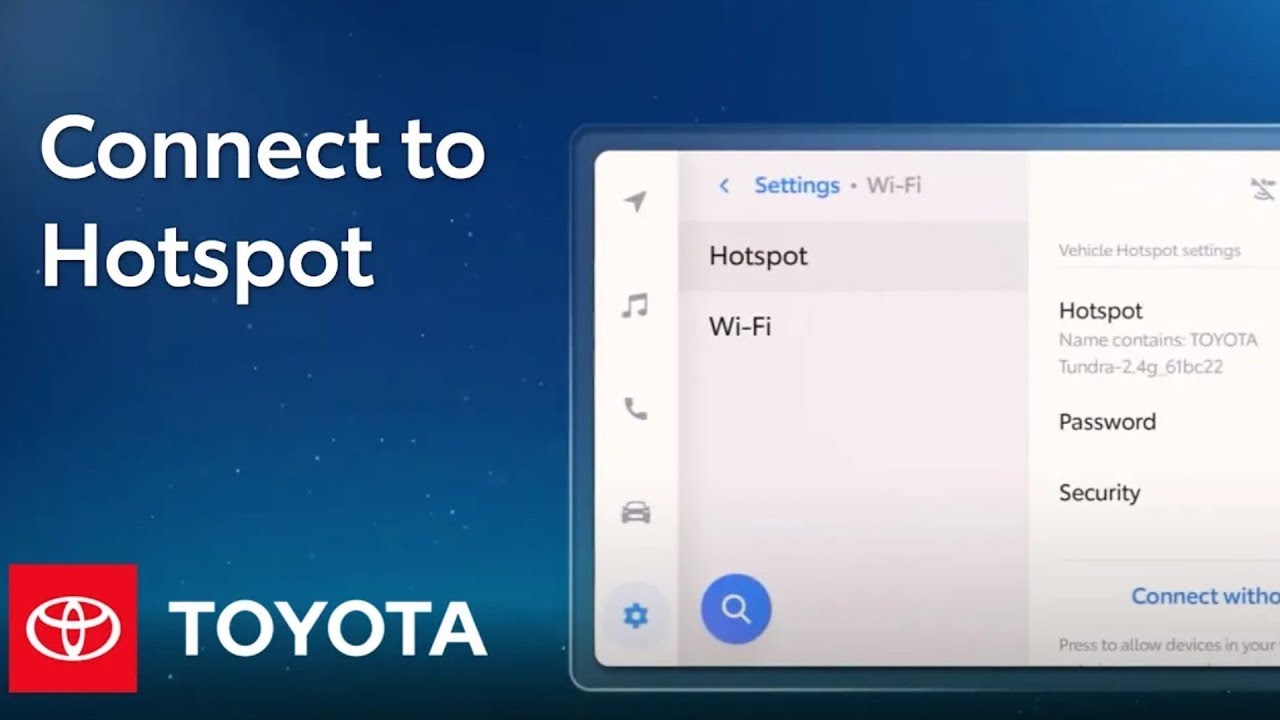
How To: Enable Wi-Fi Hotspot on Toyota’s Audio Multimedia System | Toyota
Toyota’s latest-generation Audio Multimedia platform includes a huge list of great
entertainment, convenience, and connectivity features. To provide drivers and their passengers with powerful, mobile internet access, eligible Toyota models come with an in-vehicle Wi-Fi Hotspot trial for three gigabytes or 30
days, whichever comes first. This feature offers up access to expanded streaming, browsing, and sharing possibilities through a fast, AT&T 4G LTE connection that
allows up to five devices to connect to your vehicle’s
Wi-Fi at the same time. This video will provide a closer look at how to activate your subscription, set up the in-vehicle Hotspot, and connect your relevant devices. Let’s dive in. To get started, you’ll first need to activate
your Wi-Fi Hotspot trial using the Toyota app, or enable hotspot service by purchasing or extending a subscription. For this, you’ll need to
have a Toyota account, and the vehicle and
driver must be registered and enrolled in an active Wi-Fi Connect trial or subscription. Be sure to watch the Registration
Video within this series to learn more about subscribing
to Connected Services. From there, it’s as simple as enabling and connecting to the hotspot, then activating your data plan with AT&T. Once your vehicle and
mobile device are linked, you can enable your Wi-Fi Hotspot by clicking the Settings Icon
on your multimedia display, scrolling down to Wi-Fi, and toggling the Hotspot
functionality to “on.” Once activated, you’ll be able to view the hotspot’s network
ID, password details, and security settings, which can only be modified
when the vehicle is parked. Now, to continue connecting
your mobile device, open the Settings app, tap Wi-Fi, locate the Vehicle Name from
the list of available networks, enter the network password as displayed on your
vehicle’s multimedia screen, and finally, select Join. On your mobile device, you’ll see a blue checkmark to signal a successful connection. On the multimedia display, you’ll receive a banner notification confirming a successful connection. Congratulations on activating
your in-vehicle Wi-Fi Hotspot! Now, if an AT&T plan is already active, you can simply begin using
your device like normal. If not, you’ll land on
an AT&T “myVehicle” page with simple instructions on how to activate your
trial or subscription. At this point, you’re all set up and can now browse online
through your connected devices, and your vehicle can now play
content from your Apple Music and Amazon Music accounts through the integrated Streaming feature. A full 30-day free trial subscription is included for Integrated Streaming. And you can also use the same user flow to connect up to five devices, including tablets,
laptops, and smartphones. And that’s a quick look at how to enable and connect devices to your
in-vehicle Wi-Fi Hotspot through Toyota Connected Services. Now, you can kick off your next road trip or commute with entertainment
features that enable you and your passengers to stream music, movies and TV shows, play games, browse the internet, check texts, and emails on
up to five different devices. To learn more, visit
toyota.com/connected-services.
Connect to Toyota’s Multimedia Platform hotspot feature to access expanded streaming, browsing, and sharing possibilities. A fast and secure AT&T 4G LTE connection allows up to five devices to pair to your vehicle’s Wi-Fi at the same time.
Learn more about:
Toyota Audio Multimedia System: https://www.toyota.com/audio-multimedia
Toyota Connected Services: https://www.toyota.com/connected-services/
0:00 How Can I Enable Hotspot on Toyota’s Audio Multimedia System
0:45 How to Connect WiFi Service to My Toyota
1:19 How Can I Enable and Connect to My Toyota’s Hotspot
2:20 How to Use Devices While Connected to Toyota Hotspot
▶More Toyota Multimedia videos: https://www.youtube.com/watch?v=aLWInUJkmYk&list=PLsOvRYzJPCwWa2XJu8b0ZXLoNwBF4RZiv&index=1
▶Toyota Multimedia System Explained: https://www.youtube.com/watch?v=5AJKVv9X0SU&list=PLsOvRYzJPCwWa2XJu8b0ZXLoNwBF4RZiv&index=1
▶Latest videos from Toyota: https://www.youtube.com/watch?v=qZzqdygb-5I&list=PLsOvRYzJPCwVPnQZg9qWBpGP8oHLM1aT_&index=1
Subscribe for more Toyota videos: http://bit.ly/ToyotaSubscribe
Connect with Toyota USA online:
Visit the Toyota WEBSITE: http://bit.ly/ToyotaSite
Like Toyota on FACEBOOK: http://bit.ly/ToyotaUSAFB
Follow Toyota on TWITTER: http://bit.ly/ToyotaTwitter
Follow Toyota on INSTAGRAM: http://bit.ly/ToyotaInsta
This Toyota tutorial shows how to enable and connect a WiFi Hotspot within the latest-generation Audio Multimedia System.
Feature available for most of the following models: bZ4X, Sequoia, Tundra.
Applicable to models of the following years: Applicable to models of the following years: 2022, 2023
#Toyota #ToyotaAudioMultimedia #WiFiHotspot