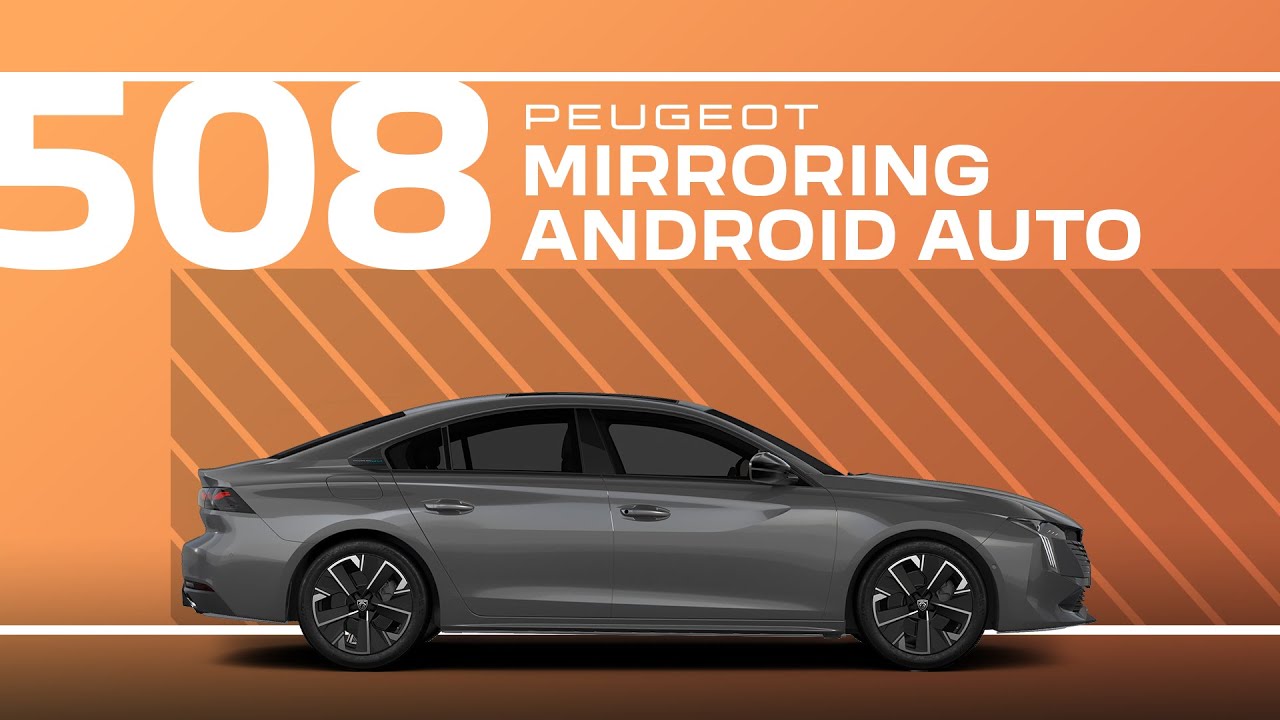
Peugeot 508 Tutorial | Mirroring Android Auto™
Connecting an Android Auto smartphone can be done either via USB cable or in wireless mode. First, install the Android Auto application via Play Store on your smartphone. Then, connect the smartphone to the system via the USB port. Android Auto will be launched automatically a few seconds after the USB connection has been established. The smartphone charges when it is connected via the USB cable. The cable connection allows you to avoid any disconnections, especially when going through toll booths. The wireless connection of your Android Auto smartphone can be initialized from the devices menu. First, activate the Bluetooth function on your smartphone. On the touch screen, press the settings application. In the list, select the connectivity tab. Select devices to display the device you wish to connect to Android Auto. If the device has never been connected to the system, proceed with pairing. The system will detect if the smartphone is compatible with Android Auto and offer to connect to it after pairing. If the device has previously been connected to the system via Bluetooth, select the devices settings in the list of known devices and choose Android Auto as the wireless connection mode. In order for the smartphone to be automatically connected thereafter, you must activate your devices Bluetooth. As soon as the connection is established, press this button to display the Android Auto interface. To launch the smartphone’s voice commands, long press the command button on the steering wheel.
Seamlessly connect your smartphone to your #Peugeot508 with #AndroidAuto. This tutorial provides step-by-step guidance for setting up the system via USB cable or in wireless mode, allowing you to access navigation, media, calls, and more directly from your car’s touchscreen.
Learn how to pair your device, manage connectivity settings, and launch Android Auto for a smooth and reliable experience. Whether you prefer the stability of a cable connection or the convenience of wireless, this #PeugeotTutorial has you covered.
#Peugeot #SmartDriving #Connectivity
Ready to find out more?
🇫🇷 PEUGEOT 508: https://www.peugeot.fr/nos-vehicules/nouvelle-508-hybrid.html
🇬🇧 PEUGEOT 508: https://www.peugeot.co.uk/models/508-fastback.html
🇪🇸 PEUGEOT 508: https://www.peugeot.es/gama/peugeot-508-hybrid.html
🇮🇹 PEUGEOT 508: https://www.peugeot.it/gamma-modelli/nuova-508-berlina.html
🇩🇪 PEUGEOT 508: https://www.peugeot.de/modelle/limousine-508.html
🌎 Peugeot.com: https://www.peugeot.com/en/peugeot-around-the-world.html
0:00 Introduction
0:06 USB and wireless connection options
0:12 Installing the Android Auto app
0:18 Connecting via USB cable
0:39 Wireless connection
1:29 Accessing the Android Auto interface
1:34 Launching voice commands with the steering wheel