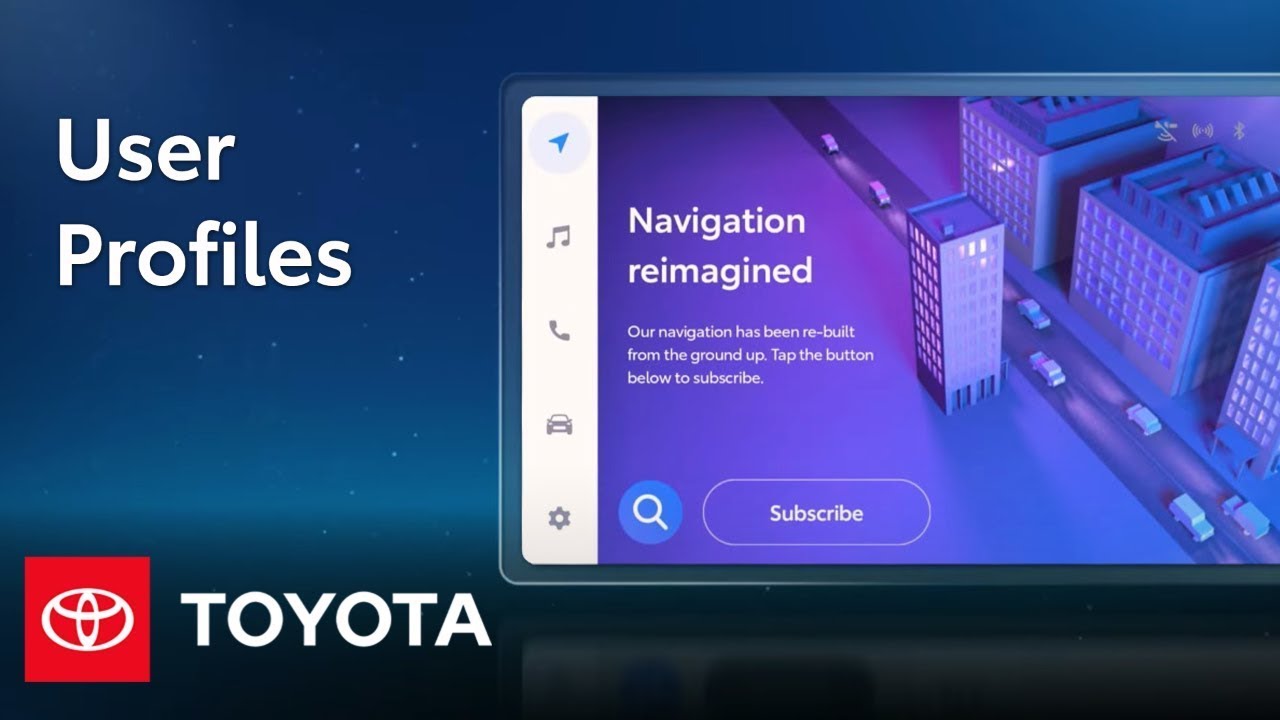
How To: User Profiles on Toyota’s New Audio Multimedia System | Toyota
Toyota’s latest-generation Audio Multimedia platform includes a huge list of great
entertainment, convenience, and connectivity features. This video will provide a
closer look at User Profiles, which allow drivers to automatically load their preferred settings
whenever they’re in the vehicle. To make the most of User Profiles, the vehicle must be registered
with a Toyota account, which can be done through
the Toyota mobile app. Let’s get started. First, there are different
types of driver profiles: The Primary driver profile, which corresponds to the
enrolled vehicle owner. In addition, two secondary profiles can be saved to the vehicle. All three can be programmed
with personalized navigation and music streaming
preferences, radio preferences, vehicle and notification settings, but only the Primary driver can receive vehicle health reports, manage services for the vehicle, and more. Creating and loading a driver
profile is most easily done during registration within the Toyota app. This process will create a Toyota account, register the vehicle,
and set a profile PIN. Once this is done, the
Primary driver profile can be saved to the vehicle simply by entering that same PIN when the vehicle detects the profile. And from here, it’s also
easy to tie the profile to a Bluetooth-enabled
mobile device or key fob. Once the profile is saved, a Setup Bluetooth
notification will appear. Select Yes, and then confirm
the code on your mobile device and the Audio Multimedia
display before selecting OK. At this point, the device
and vehicle will be paired, so primary drivers
should simply select Yes to also tie that device to
the active driver profile. Guest drivers should select No. And to pair a key fob
to the active profile, put the vehicle in Park and select the Settings menu on the Audio Multimedia display. Navigate to Personal Info, scroll down to the Link key
option, and simply toggle it on. With this pairing process complete, the last loaded and saved profile will now automatically
load at vehicle start up. When a saved profile is
recognized on a device but, for whatever reason, does not load, a popup appears on the
Audio Multimedia display indicating that a profile
has been detected. Select Settings to see a full
list of detected profiles, and then choose the driver
profile from the list. Once the PIN is entered,
the profile will be loaded. To save this driver profile for
future use, select Continue. Otherwise, Do not save
will load the profile for the current drive only. Once setup is complete, the driver profile will be listed within the Settings menu,
under Current driver. Please note that when no profile is detected upon vehicle startup, a notification will still appear. Select Dismiss to continue in a guest mode where there are no
personalized preferences or settings for the vehicle, or select Settings to
set up a new profile. Switching between driver
profiles can be done at any time, even while driving. Simply select the Settings menu and choose a different
profile from the list. It may sometimes be necessary to sign out of a driver profile, like if the vehicle is
being handed to a valet. Select the Settings menu, then select Sign out to guest mode at the bottom of the profile section. Upon reentering the
vehicle, confirm the PIN or use the linked mobile device
to reactivate the profile. In this situation, the key fob cannot be
used to sign back in. To delete a profile,
navigate to the Saved profile within the Settings menu, select Edit, select the profile to be removed, and then select Delete to confirm. And that’s a quick look at User Profiles on Toyota’s latest Audio
Multimedia platform. To learn more, visit
toyota.com/audio-multimedia.
Toyota’s new Audio Multimedia Platform includes the possibility to set up and customize different user profiles, allowing drivers to automatically load their preferred settings whenever they are in the car. More Toyota Multimedia videos: https://www.youtube.com/watch?v=5AJKVv9X0SU&list=PLsOvRYzJPCwWa2XJu8b0ZXLoNwBF4RZiv&index=2
0:00 Toyota’s New Audio Multimedia Platform
0:28 What are the different types of profiles?
1:00 How do you create and link a profile?
2:09 How to load a profile?
3:17 How do you manage profiles?
Learn more about the new Toyota Audio Multimedia System: https://www.toyota.com/audio-multimedia. Feature available for most of the following models: bZ4X, Sequoia, Tundra. Applicable to models of the following years: Applicable to models of the following years: 2022, 2023
Watch More Videos & Playlists:
▶Latest videos from Toyota: https://www.youtube.com/watch?v=8Vt3yjLpgMA&list=PLsOvRYzJPCwVPnQZg9qWBpGP8oHLM1aT_
▶Check out the latest Multimedia videos here: https://www.youtube.com/watch?v=5AJKVv9X0SU&list=PLsOvRYzJPCwWa2XJu8b0ZXLoNwBF4RZiv
▶Need More Technical Help? https://www.youtube.com/watch?v=r-znruWBzs0&list=PLsOvRYzJPCwW06v8GsgdSI2Mxq-o4d9ba
Subscribe for more Toyota videos: http://bit.ly/ToyotaSubscribe
Connect with Toyota USA online:
Visit the Toyota WEBSITE: http://bit.ly/ToyotaSite
Like Toyota on FACEBOOK: http://bit.ly/ToyotaUSAFB
Follow Toyota on TWITTER: http://bit.ly/ToyotaTwitter
Follow Toyota on INSTAGRAM: http://bit.ly/ToyotaInsta
This Toyota tutorial shows how to configure user profiles within the new Audio Multimedia System.
#Toyota #ToyotaAudioMultimedia #UserProfiles